How to Share Slices with Family Members
Step-by-step guide to sharing slices with family members: sending invitations, choosing viewer or contributor access, and managing who can see each shared slice.
Collaborate on shared expenses by sharing specific budget slices with your family members. Perfect for rent, groceries, utilities, and other household budgets.
Requirements:
- Family plan subscription ($25/month or $200/year)
- At least one family member who has accepted their invitation
- A slice you own
Quick Start
- Open any slice you own
- Click Share in the slice header
- Select a family member
- Choose Viewer or Contributor
- Click Share Slice
The slice now appears in their account, and they get an email letting them know.
Step-by-Step Guide
Step 1: Open the Slice You Want to Share
- Go to the Slices page
- Click the slice you want to share (for example, “Rent” or “Groceries”)
- The slice details open
Tip: You can only share slices you own. Slices shared with you cannot be re-shared.
Step 2: Click the Share Button
Look for the Share button in the slice header.
If you don’t see it:
- Verify you’re on the Family plan (Settings → Subscription)
- Make sure you’ve invited at least one family member (Settings → Family Members)
- Confirm the invitation was accepted (status: Active)
Step 3: Select a Family Member
The Share Slice modal lists your active family members with their name and email. Pick one; you share with one person at a time and can repeat for others.
Family members who already have access appear in the modal’s Current access list instead.
Step 4: Choose Their Access
Two levels, one choice:
Viewer
- Sees the slice’s balance, target, transactions, and activity
- Good for: keeping a partner or family member in the loop with nothing for them to manage
Contributor
- Everything a viewer sees
- Plus: assigning their own transactions to this slice
- Good for: shared spending budgets like groceries, gas, or household bills
Money movement stays with you as the owner. Only you can move funds in or out, change the target, or set up automation for the slice. Shared visibility never means someone else can rearrange your budget.
Step 5: Share
Click Share Slice. The family member sees it immediately in their Shared Slices section and receives an email with a link to view it.
Managing Access After Sharing
Open the Share modal on any shared slice to manage it. The Current access list shows everyone with access to this slice.
From there you can:
- Switch roles: toggle anyone between Viewer and Contributor with one click
- Remove access: click Remove next to their name to unshare immediately
When everyone in your family already has access, the modal shows the access list so you can manage or remove people, and tells you there’s no one new to add.
Removing a family member from your plan entirely (Settings → Family Members) also ends their access to every shared slice at once.
What Each Person Sees
You (the owner)
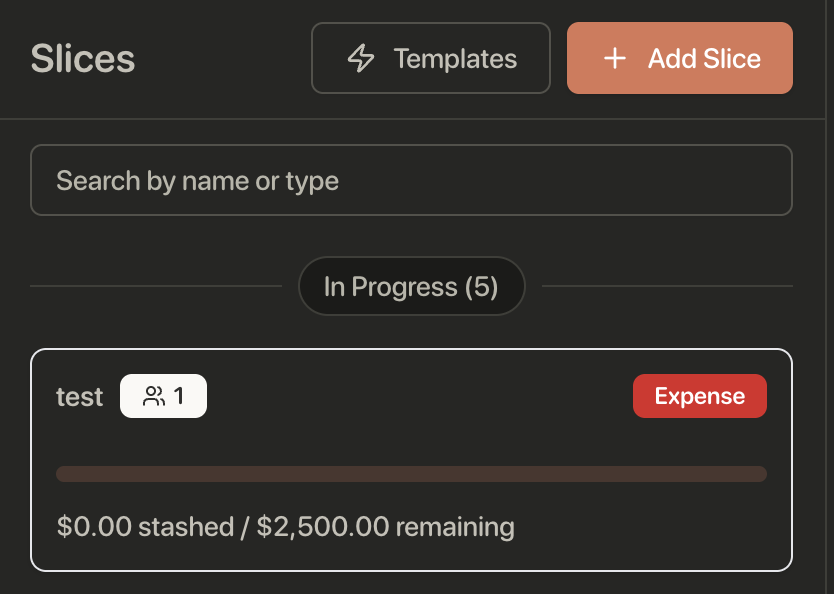
- The slice stays in your normal list with a small badge showing how many people it’s shared with
- Slice details show Shared With and the names of everyone with access
- A Contribution Breakdown section shows funding activity on the slice
- Full control stays with you
Your family member
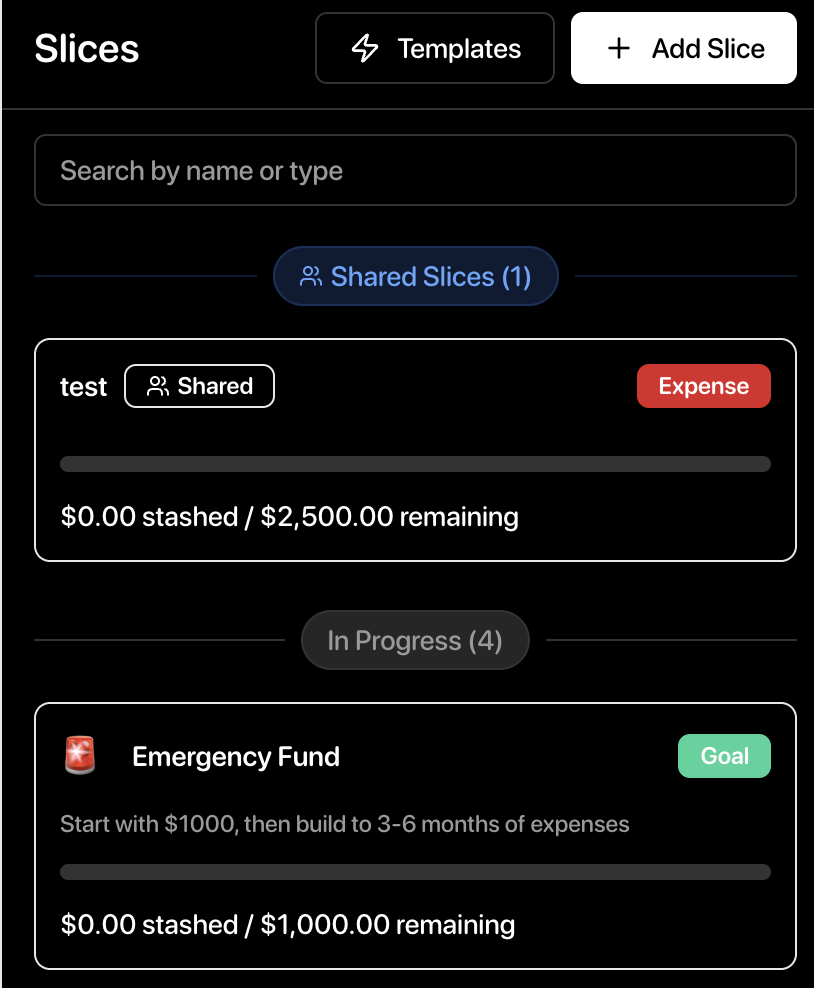
- The slice appears in a dedicated Shared Slices section at the top of their list, with a “Shared” badge
- Slice details show Shared By with your name
- They see the balance, target, and every transaction assigned to the slice
- Contributors can assign their own transactions; viewers can only look
They cannot see your bank accounts, your other slices, your Safe-to-Spend, or any transaction not assigned to this slice.
Real-World Examples
Shared Groceries
- Create a “Groceries” slice with an $800 monthly budget
- Share with your partner as Contributor
As you both shop, each of you assigns your own grocery transactions to the slice. The budget draws down in one place, and the transaction list shows exactly whose purchases were whose. No more comparing bank apps at the end of the month.
Rent Visibility
- Create a “Rent” slice and fund it from your paycheck
- Share with your partner as Viewer
Your partner sees the rent is covered without needing to manage anything. One person runs the budget; both people can stop wondering.
A Teenager’s First Budget
- Share a “Gas” slice with your teenager as Contributor
- They assign their fill-ups to the slice and watch the budget draw down
They learn to spend against a real limit, inside the family plan, without access to anything else.
Common Questions
Q: Can I share a slice with multiple family members? A: Yes. Share with each person one at a time; each can have their own access level.
Q: Can I change someone’s access after sharing? A: Yes. Open the Share modal and switch them between Viewer and Contributor, or remove their access.
Q: Can family members share their own slices too? A: Yes. Anyone on the family plan can share slices they own, with any other family member. Sharing works in every direction.
Q: Can family members see my other slices? A: No. Only slices you explicitly share are visible. Everything else stays private.
Q: Can a contributor overspend the slice? A: Assignments check the slice’s available balance first, so the budget is respected the same way it is for your own spending.
Q: What happens when I remove someone’s access? A: They stop seeing the slice immediately. Their past transactions stay assigned so your history remains accurate.
Troubleshooting
I don’t see the Share button
- Verify you’re on the Family plan (Settings → Subscription)
- Check that you’ve invited family members and at least one is Active
A family member doesn’t see the shared slice
- Have them refresh the page
- Verify the share succeeded: their name appears under Current access in the Share modal
- Confirm they’re logged in to the account you invited
Someone can see the slice but can’t assign transactions to it
- Check their role in the Share modal. Viewers can’t assign; switch them to Contributor.
Related Guides
- Family Budgeting Overview - The complete family budgeting picture
- How to Create Your First Slice - Before you can share
- Assign Transactions to Slices - What contributors do
- Move Funds Between Slices - Funding the slices you own
Ready to budget together? Upgrade to the Family plan at trycakebudget.com